
Why does this happen?
Steam sometimes flags QR logins from a server IP as unusual activity and asks you to confirm the sign-in inside the Steam Mobile App. Three taps in the app and your account starts idling - follow the steps below.
01
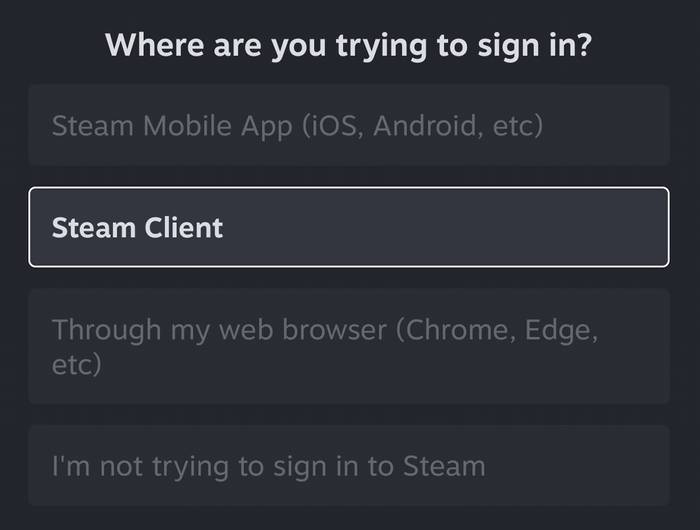
Where are you trying to sign in?
Select "Steam Client"
02
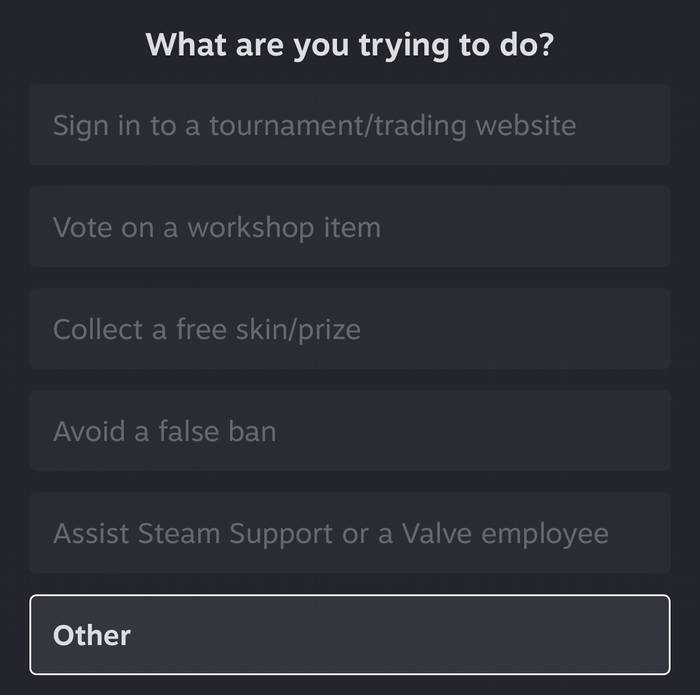
What are you trying to do?
Select "Other"
03
Confirm sign-in
Complete authentication
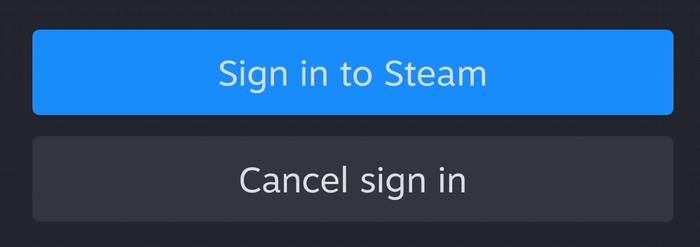
Once approved, the QR login finishes automatically.
Return to the Add Account dialog - the worker picks up the session within a few seconds and the account moves to IDLING. If nothing happens after 30 seconds, click New QR code and try again.